General Questions
We accept all major credit cards.
Processing time usually takes 1-2 business days and orders will arrive withinn 5 business days from when the order was processed.
Yes. You can call our Sales & Customer Service department at (800) 678-3669.
We are here for you Monday through Friday, 7:00am to 5:30pm, Pacific Time. For orders outside the USA or Canada, call our corporate telephone line at +1 (510) 732-9229.
Yes. In case you want to send your order to P.O. Box, please put the order in via phone. Call our Customer Service at (800) 678-3669 or +1 (510) 732-9229 for those calling from outside USA and Canada (Mon-Fri 7:00am to 5:30pm Pacific Time).
Yes.
Yes.
Yes.
We have distributors in many countries throughout the world, and we encourage you to purchase from them. If you are buying a weather product, please try our International Weather Reseller Locator.
If you cannot find a reseller in your country, please contact us at orders@davisinstruments.com for shipments outside USA and Canada.
At the time of shipment you will receive an automated Advance Shipment Notice via email that includes your tracking number.
Your order will arrive within 5 business days from when the order was processed. Processing time usually takes 1-2 business days.
All orders ship Monday - Friday from Hayward, CA; except holidays: New Year’s Day, Presidents Day, Memorial Day, Independence Day, Labor Day, Thanksgiving, Christmas Eve, and Christmas.
Shipping cost is calculated in our freight tool based on shipping service, product weight, dimensions, and shipping location.
To view your shipping cost before sending in the order, add desired item(s) to the cart, proceed to checkout with shipping addressed filled in correctly, and view the calculation of different options in the SHIPPING section of your CHECK OUT page.
Yes. Please contact us before sending items in for repair. We may be able to solve your problem over the phone or send replacement parts. Learn more here.
We pledge to '30-day money-back guarantee' policy.
Before returning the item, please consider contacting us first, giving us the opportunity to correct the issue for you, or to simply hear your feedback.
If you purchased your Davis product directly from us, you may mail it back to us. Mail the product with the reason for its return to:
Davis Instruments Corp., 3465 Diablo Ave, Hayward, California 94545 USA.
Shipping charges are not refundable.
If you purchased your Davis product from one of our resellers, please contact the reseller for returns.
We warrant our products to be free of defects in material and workmanship for 1 year from the date of original purchase. Learn more here.
In the USA, the National Institute of Standards & Technology (NIST) develops and maintains the standards of measurement to which all others are ultimately traced. NIST standards allow companies to ensure product precision against specific measurments. Davis Instruments is proud to participate in the NIST program.
Traceability as defined by NIST: property of the result of a measurement or the value of a standard whereby it can be related to stated references, usually national or international standards, through an unbroken chain of comparisons all having stated uncertainties." (International Vocabulary of Basic and General Terms in Metrology (VIM), BIPM, IEC, IFCC, ISO, IUPAC, IUPAP, OIML, 2nd ed., 1993, definition 6.10)
You can transmit data from one sensor suite to a Vantage Vue or Vantage Pro2 console. You can also add up to 7 additional special-purpose sensors or stations such as a Leaf and Soil Moisture/Temperature Station, a Temperature/Humidity Station, and others. See table below for restrictions.
Use our WeatherLink Live (#6100) if you need to receive data from more than one sensor suite.
With EnviroMonitor, you can use many top-tier, third-party sensors. We currently support sensors from AquaCheck, ProSense, Sentek, Omega, Seametrics, Irrometer, and more. We are constantly integrating additional sensors.
Vantage Vue
The Vantage Vue or Vantage Pro 2 consoles can use 2 different sources of power. They can use AC power from the wall or it can use batteries as the primary power. If you are not using AC power and are using batteries ONLY, the console batteries will typically last about 9 months.
However, if you are using a WeatherLink IP (6555) or a cabled console, the batteries are ONLY good for BACKUP power. If you have a console with a WeatherLink IP (6555), the batteries will last 2 days. Using a cabled console the batteries will last 27 days.
If your wind direction is showing a different value than the physical vane on the ISS, it can always be calibrated into the correct position just as a setting on the console, using the "set" command while highlighted on your wind direction.
However, one very common mistake made in regards to this is when first putting the ISS together, there is a specific set of instructions to follow in the installation manual that is often skipped by new users. Take a look below:
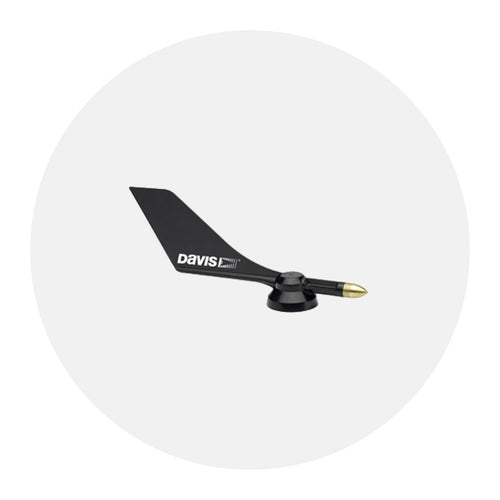
Attaching the Wind Vane
The Vantage Vue wind vane measures wind direction. The wind vane is mounted on a stainless steel shaft on the opposite side of the sensor suite assembly from the wind cups.
- Hold the sensor suite assembly on its side with the anemometer and radiation shields oon your left, the wind vane shaft on your right and the wind cups away from you.
- When the sensor suite is held in this manner, the wind vane shaft is horizontal, and will orient itself so othat its flat side will be facing to the right, as shown.
- Holding the senoor suite assembly with your left hand, grasp the wind vane with your right hand soo that the "arrowhead" end is pointed down.
- Gently slide the wind vane onto the wind vane shaft, rotating the wind vand slightly left and right if necessary, until the end of the shaft is visible and protrudes slightly from the bottom surface of the wind vane.
- Secure the wind vane to the shaft by firmly tightening the wind vane set screw with the Allen wrench provided.
If you feel friction when spinning the wind cups by hand, you can order a replacement wind speed bearing cartridge (SKU 7345.271)
Many Davis stations have taken a lightning lickin' and kept on tickin'! But if your station is having some lightning post traumatic stress, start here.
First, take a look at the station and see if there is any visual damage. If so, make note and/or take photos to have available when contacting us.
Next, assess if the station has power. The White button on the bottom of the ISS is not a reset button. However, it will activate the LED so we can determine if it has power. If, after pressing the white button, the LED does not turn on, then a reset is the way to go.
To reset:
- Remove the battery.
- Cover the solar panel (make sure no light can get to the panel, wrapping it in a blanket or placing it in a dark closet or trunk.
- Leave in the dark for 24 hours.
- AFter time has elapsed, put battery back in and press the white button.
- Make sure you have a normal blink from the LED.
If you do have lightning damage, it may no be repairable. If you want to us to look it over, please contact us to get an RMA. We can evaluate your ISS for lightning damage and repair if possible.
If you are having issues getting data from your Vantage Vue sensor suite, or the data seems incorrect, you may be getting interference from another weather station that is within transmitting range. The best solution is to change the transmitter ID on your station and console to one that is not getting interference.
Vantage Vue sensor suite:
- Push and hold the transmitter ID pushbutton until the LED begins flashing quickly. This indicates it is in setup mode.
- Release the pushbutton, and the LED will go dark.
- Push the pushbutton the number of times equal to your desired new transmitter ID. That is, if you want to cange the ID to "3", push the pushbutton three times; for a desired ID of "4," push the pushbutton four times.
After four seconds have elapsed with no further presses, the LED will blink the same number of times as the new transmitter ID. (After blinking the tranmitter ID number, the light will begin to flash each time a packet is transmitted, about every 2.5 seconds.)
Vantage Vue Legacy Console:
- Enter Setup Mode by pressing and releasing 2ND and then SETUP.
- Press DONE several times to move to screen 6. You will see STA # VUE ISS.
- Press the < and > keys too select the same transmitter ID you chose on the sensor suite. NOTE: When you select a transmitter ID (1-8), the ID number is displayed on the screen as well as itss current configuration (OFF, VUE ISS, VP2 ISS or WIND).
- Press the + or - keys too toggle console reception of signals from transmitters using that ID on and off. (Make sure only the ID you are using is set to on, all other IDs should be off).
To adjust the screen's contrast:
- Press and release 2ND
- Then press the + and - keys miltiple times while the 2nd icon appears on the screen
The + key darkens the segments currently displaying on the console screen. The - key lightens the segments currently displaying on the console screen. Adjust the contrast as desired.
Note: the step changes are subtle. You may need to press the key several times.
The Vantage Vue uses a CR-123A 3-volt lithium battery to back up the capacitor. When the battery is low the console will display a "Low battery on transmitter 1" error message. It will need to be replaced every few years (8 months without sunlight- greater than 2 years depending on solar charging)
Note: Once triggered, a low battery warning does not reset automatically until midnight. So even if you've inserted a brand new battery, the warning may not disappear until the next day - this is perfectly normal. Ocassionally the first midnight reset doesn't work and it may take 2-3 days before the warning disappears - provided the outside data is being received normally this is not a cause for concern.
Vantage Pro2
We've put together this table to show you how Vantage Vue and Vantage Pro2 compare in accuracy, resolution and range.
The standards for siting a station are to have temperature sensors 4 to 6 feet (1.2 to 2.0 meters) above the surface, and 30 feet (9.1 meters) for wind.
But there is more to consider than just height. An anemometer at 33 feet (10.1 meters) in the narrow alley between two 100-foot (30.5-meter) buildings and a temp sensor exactly 5 feet (1.5 meters) above a large black asphalt parking lot will not give you very usable data. But, what if what you want to know is how hot it gets in the parking lot, or how fast the wind whistles down that urban canyon? The point is, you want data that pertains to your specific needs and environment.
Siting standards are guidelines that most users probably can't meet perfectly. You want to mount your weather station as close to the standards as possible, but odds are, you won't be able to find the perfect site.
For those who require more precise siting, a Vantage Pro2 is the station for you, because the anemometer can be mounted on the roof or a tower, and the rest of the sensors at 6 feet (1.8 meters).
In the case of Vantage Vue, the two sensors cannot be separated, so they must be mounted at the same height. A compromise would work, but perhaps a better way to look at it would be to consider which information is most important to you. If you live where wind is the most interesting weather variable and you have many trees sheltering your yard, mounting on the roof, 6 feet (1.8 meters) above the surface, will be the best option. (But bear in mind that you will need to access your station for routine maintenance.) If you really are more interested in rain and temp, then finding a spot where the station can be mounted at 5 to 6 feet (1.5 to 1.8 meters) will give you accurate readings for temp and rain and will allow easy maintenance. (Bear in mind that wind readings will be affected by obstructions on the ground.)
If the anemometer arm cannot be mounted pointing to true north, use this procedure to correct the wind direction console reading.
- Check the current direction of the wind vane on the anemometer. Compare it to the wind direction reading on the legacy console.
- Press WIND as necessary to display the wind direction in degrees.
- Press and release 2ND, then press and hold SET.
- The wind direction variable will begin to blink.
- Continue holding the key until the CAL message appears in the ticker. The ticker displays the current wind direction calibration value.
- Press the < and > keys to select digits in the anemometer’s current reading.
- Press the + and - keys to add/subtract from the anemometer reading.
- Repeat steps 6 and 7 until you have entered the offset value from Step 1.
- Press DONE to exit calibration.
Very specific rainy conditions can affect the readings from your Sonic Anemometer. Due to the nature of sonic technology, drops of fairly cold water or large amounts of rain may appear to the sensor to be different densities.
Such rain conditions can interfere with the sampling of the wind. The characteristics of these errors are a 180° rotation of the measured wind angle and a very strong increase of the wind speed, reaching towards 40m/s, for short periods of time.
I do not want to replace may batteries, can I power the outside portion (ISS) of the Vantage Pro 2 some other way?
Yes, you can purchase a power supply (same model as used for the console - 6625)
You would unplug the solar and remove the battery. Then plug the power adapter into port 2 below.(Note, it will appear to seat only partially, this is actually fully seated)
The tipping spoon should tip at the following points.
If the unit is a US version the spoon should tip at or about, 5.4ml
If the unit is a Metric version the spoon should tip at or about, 4.3ml
We do NOT recommend calibrate using this number. This is strictly provided for knowledge reasons for the scientific community.
Yes. Freezing temperatures do not damage the rain collector. However, the rain collector will not correctly read the volume of water contained in snow. You can put a cover over the rain collector to keep the snow and ice out during the winter season. Or, you can purchase a Davis heater for the older version of the aerocone to melt freezing precipitation.
You have to lift up the white plastic piece that is wedged behind the transmitter box. Click the link below and fast forward the video to about 2:00 to see it done.
We've put together some ways you can use our shelters and solar power kits:
Use a Solar Power Kit, shelter, or extra solar panel for your Vantage Pro2 or Vantage Vue console, Weather Envoy8X, or Weather Envoy. View various installation options for each product. (6612, 6614, 6616, 6618)
Click for installation diagrams.
No. The cabled consoles will not work with the wireless Sensor Suites.
To power down your console:
- If it is powered using a cable, unplug the cable.
- If the console has batteries, remove the batteries.
That's it! The console is shut off completely.
The Vantage Vue or Vantage Pro 2 consoles can use 2 different sources of power. They can use AC power from the wall or it can use batteries as the primary power. If you are not using AC power and are using batteries ONLY, the console batteries will typically last about 9 months.
However, if you are using a WeatherLink IP (6555) or a cabled console, the batteries are ONLY good for BACKUP power. If you have a console with a WeatherLink IP (6555), the batteries will last 2 days. Using a cabled console the batteries will last 27 days.
The wireless Vantage Pro2 uses a CR-123A 3-volt lithium battery to back up the capacitor. When the battery is low the console will display a "Low battery on station 1" error message. It will need to be replaced every few years (8 months without sunlight- greater than 2 years depending on solar charging)
Note: Once triggered, a low battery warning does not reset automatically until midnight. So even if you’ve inserted a brand new battery, the warning may not disappear until the next day – this is perfectly normal. Note: Once triggered, a low battery warning does not reset automatically until midnight. So even if you’ve inserted a brand new battery, the warning may not disappear until the next day – this is perfectly normal.
In addition to logging weather data, the Vantage Pro2 legacy console continuously monitors the station’s radio reception. You may find this information very helpful, especially when you are choosing locations for your console and ISS. The Console Diagnostics Mode consists of two screens, the Statistical Diagnostic Screen and the Reception Diagnostic Screen. The Statistical Diagnostic screen applies for both cabled and wireless weather stations. The Reception Diagnostic screen applies only to wireless weather stations and is not accessible to a cabled weather station.
Note: Radio transmission data used by the diagnostic screens clears each day at midnight.
Diagnostic Screen Commands • Press and hold TEMP, then press HUM to display the Statistical Diagnostic screen.
- Press the > key to display signal statistics for the next installed transmitter ID.
- Press 2ND and then press CHILL to toggle between the Statistical and Reception Diagnostic screens.
- A degree (°) sign displays in right corner of value 1 of the Reception Diagnostic screen (screen 2) to differentiate which screen is currently displayed.
- Press DONE to exit the diagnostic screen.
Screen 1: Statistical Diagnostic Screen
The Statistical Diagnostic displays information about how data is being received from the weather station to the console. The information that is displayed in this screen includes:
Note: All values with a * mark the value as being for Davis Instruments Internal use. All values with a ‡ mark values that are the same on both the Statistical and Reception Diagnostic screens.
- Time of day or number of times the anemometer switch was seen closed*.The switch closes once each revolution of the anemometer wind cups. Press WIND to toggle between these two values.
- Date or the number of times the anemometer switch was seen open*. Press WIND to toggle between these two values.
- Number of packets containing CRC errors received. The system runs a CRC check on data packets. Any data packets that don’t pass this check are considered to contain errors and are discarded. These are considered bad packets.
- The total number of bad data packets including missed packets and CRC errors. Missed packets are described as when a data packet is expected, but is not recognized as a data packet by the console.
- Percentage of good packets received.
- Total number of good packets received.
- Number of times the console resynchronized with the transmitter. The console will attempt to resynchronize with the station after 20 consecutive bad packets.
- Maximum number of bad packets in a row without resynchronization.
- Current streak of consecutive bad packets. The counter increments when the console is synchronized but the packet is bad. This value is reset to zero when a good packet is received.
- Longest streak of consecutive good packets received.
- Current streak of consecutive good packets received.
- Graph of the daily percentage of good data packets received over the last 24 days.
- Background noise level. This refers to the undesirable signal level the console hears while it is in the process of acquiring a signal from a station. The range displayed is from 5 to 60. When the noise level is high, try to move the console closer to the station to get a stronger signal. Small background noise level does not always guarantee good reception. The signal strength between the station and the console needs to be stronger than the background noise level in order for the console to receive clearly. If there are reception problems while a small background noise level is still being displayed, make sure the console is within reasonable range of the station. If the console currently has acquired all the station signals it is set to receive, the background noise level displayed is the last noise level measurement taken before acquisition finished.
- Current console battery voltage. Ignore this value if using the AC Adapter only to power the console.
- Repeater ID currently communicating with the console. If a repeater or group of repeaters is used to relay station information to the console, the Repeater ID displayed is the repeater that the console is set to receive. If the console is not listening to repeaters, this section remains blank. Please see Application Note 25 available on the Davis Instruments Support web page for more information on using repeaters.
- The console’s reception status. See “Troubleshooting Reception Problems” on page 38 for information on the status types.
Screen 2: Reception Diagnostic Screen
The Reception Diagnostic screen displays information pertinent to the console’s wireless reception. To view this screen from the Statistical Diagnostic screen, press 2ND and then press CHILL. The degree sign displaying in the upper left corner next to value 1 verifies that the Reception Diagnostic screen is currently displayed.
The information that is displayed in this screen includes:
- 8-bit timer value of next reception.*
- Radio frequency error of the last packet received successfully. In normal operation, this value is +1, -1, or 0. This value affects the value of #5 on the next page.
- Percentage of good data packets.‡
- Signal strength of the last packet received. The values displayed in this field should generally be between 20 and 60. If a packet is not received successfully, the signal strength field is dashed out (--).
- Current frequency correction factor. Shows the Automatic Frequency Control setting.
- Frequency index of the next packet to be received.*
- Current number of consecutive bad packets.‡
- The number of times that the Phase Lock Loop did not lock.*
- Current streak of consecutive good packets received.‡
While we have tested the Wireless Vantage Pro2 radio extensively, each site and each installation presents its own issues and challenges. Obstructions, particularly metallic ones, often cut down your station’s reception distance. Be sure to test reception between the console and ISS, in the locations you intend to install them, before permanently mounting your ISS or other transmitter(s). The legacy console’s reception status displays at the lower right corner of the screen.
- An “X” flashes for every data packet received by the console.
- An “R” displays when the console is trying to re-establish a lost connection. The console tries for 10 minutes to re-establish a connection before going into L Mode.When no data packets have been received for 10 minutes, the console dashes-out any missing sensor readings.
- An “L” displays when the signal is lost (and the console is “asleep.”) The console stays in this mode for 15 minutes until returned to “R” mode. To force the console into “R” mode (“wake up” the console), enter and exit Setup Mode.
For more details on your console reception, Console diagnostic mode
You can calibrate inside & outside temperature, inside & outside humidity, as well as any extra temperature/humidity sensor readings you have transmitting to your Vantage Pro2.
- Select a variable to be calibrated.
- Press and release 2ND, then press and hold SET. After a moment, the variable you’ve selected begins to blink. Keep holding SET until the Calibration Offset message displays in the ticker. The ticker displays the current calibration offset.
- Press the+ and - keys to add or subtract from the temperature offset value. Inside and outside temperature are calibrated in 0.1° F or 0.1° C increments, up to a maximum offset of +12.7 (°F or °C) and a minimum offset of -12.8 (°F or °C). The variable will change value and the ticker will show the offset you’ve entered.
- Press DONE to exit calibration.
If your console gives a set of three beeps over and over again, you may have inadvertently set an alarm. Follow these steps on the console to clear alarms.
- Press ALARM to enter alarm mode. The ALARM and HIGHS icons appear.
- Select the alarm setting you wish to clear.
- Press 2ND, then press and hold CLEAR until the setting changes to all dashes. You have cleared the alarm setting.
- Press DONE to exit Alarm Mode.
These steps will clear the any High alarms that have been set. To clear any Low alarms, follow the steps below.
- Press ALARM to enter alarm mode.
- Press the High/Low button to display low alarms.
- Select the alarm setting you wish to clear.
- Press 2ND, then press and hold CLEAR until the setting change to all dashes. You have cleared the alarm setting.
- Press DONE to exit Alarm Mode.
Note: To clear all alarms, enter Alarm mode (press and release the ALARM key), then press and hold the ALARM key until all the fields become dashed.
When your console starts, it's normal for it to go into the "Receiving from" mode. This mode helps determine of there are other stations in your area and what station they are set to. To bypass the "Receiving from" mode, press and hold the "Done" button for two seconds.
WeatherLink Console
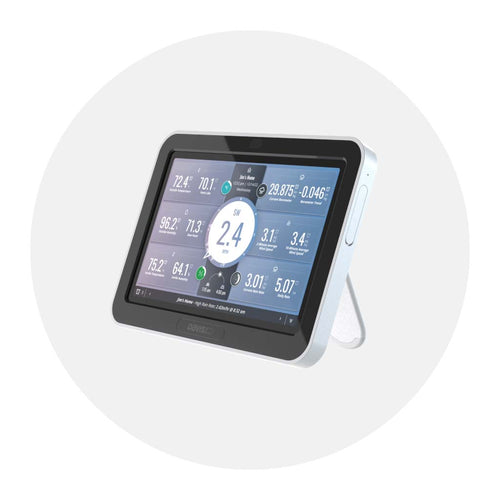
Watch this video to learn how to get started with setting up your new WeatherLink Console.
Watch the below video to show how to configure the tiles on your WeatherLink Console main display. It will also show how to add data from your AirLink to your WeatherLink Console if you also have an AirLink connected to your WeatherLink Console.
The WeatherLink Console has built-in Wi-Fi so you do not need a separate WeatherLink Live device in order to connect to Wi-Fi.
Internet-based, localized forecasts are only available when you are in Online mode. (Logged in to WeatherLink.com.)
There are several ways to reboot the WeatherLink Console Use a SIM Insertion tool, or a straightened-out paper clip.
Soft Reboot:
- Insert a paperclip in the “R” hole on the back of the console and hold for more than 1 second.
- Release the button and you should see the screen restart.
Hard Reboot (both achieve the same results)
Hard Reboot (Option 1):
- Remove the USB cable from the back of the console.
- Insert a paperclip in the “P” hole on the back of the console.
- Press and hold until you see the menu on the front showing Power off.
- Select “POWER OFF”.
- Wait for 2 minutes.
- Then reconnect the USB power cable. The unit should power back up.
Hard Reboot (Option 2):
- Remove the USB cable from the back of the console.
- Insert a paperclip in the “P” hole on the back of the console.
- Press and hold for greater than 8 seconds and until you see the screen turn completely off
- Wait for 2 minutes. Then reconnect the USB power cable. The unit should power back up.
The microSD Memory Card port on the WeatherLink Console (WLC) is designed for factory programming of the device. There is not any functional use of this for the end user.
No, the WeatherLink Console only interfaces with WeatherLink.com.
You can export data from WeatherLink.com in Excel format with a WeatherLink.com Pro or Pro+ subscription.
We offer a Weather Envoy that supports a WeatherLink USB or Serial data logger. This will allow you to interface with WeatherLink PC software.
Offline mode keeps you connected to Wi-Fi to ensure accurate time but disconnected from WeatherLink.com.
Online means your Console is connected to Wi-Fi and also connected to your account on WeatherLink.com. This will give you access to live updates on your mobile app and your page on WeatherLink.com, as well as specialized internet-based forecasts.
Your Console can also operate offline and off Wi-Fi as a standalone device.
Yes . When reconnected, you Console’s stored data will be pushed to your WeatherLink.com account.
Go to the Account tab and tap Console Configuration. Tap the pencil icon next to your network.
Davis sensors are factory-calibrated for accuracy and will normally not need any calibration. Comparing your data to TV reports or other sources is not recommended because weather data varies by microclimate. However, if you believe your console does need calibration, go to the Accounts tab, then tap Console Configuration, then tap Stations and Sensors. Scroll down to the ID number of your station and tap Edit. On the sensor detail page, tap Advanced Settings. On the next screen, you may enter calibrations for outside temperature and humidity, and wind. To calibrate inside temperature and humidity, in the Accounts tab, tap Console Settings.
Yes, the current WeatherLink.com v2 API supports data from a 6316 WeatherLink console. Details can be found here.
You can also reach our WeatherLink API team over Discord using the above link.
The main Display screen must be open to hear the audible alarm.
The WeatherLink Console and WeatherLink apps use a weather feed from Custom Weather, a proprietary weather forecast provider. Our provider does not publicly release details concerning the variables that power its weather forecast model. Customers cannot currently change the weather forecast provider to another source.
Less than a day.
You can now add a new or existing AirLink air quality monitor to your system and view the air quality data on your WeatherLink Console.
Unlike the sensors on your sensor suite, AirLink uploads data directly to WeatherLink.com and the WeatherLink app via Wi-Fi, and that data then appears on your Console. Since it does not use a radio connection to report to the WeatherLink Console, it does not need a transmitter ID, nor does it use up one of the 8 available transmitter IDs to your WeatherLink Console.
To Add a new AirLink
- Create your WeatherLink.com account, install the WeatherLink App on your phone, and set up your WeatherLink Console first.
- Open the WeatherLink app.
- On the Devices screen, tap the Add button.
-
Tap AirLink
-
Choose Install oon existing device, then choose your WeatherLink Console device, then click Install.
- Follow the prompts to finish adding your AirLink.
To Move an Existing AirLink
If you already have an AirLink air quality monitor and its data is not appearing on your console, it may be because the AirLink was installed on a different system.
For example, you may have received an AirLink and installed it as part of a system that uploaded to WeatherLink.com via a WeatherLink Live. Now that you have added a WeatherLink Console, you can move it from the WeatherLink Live to the WeatherLink Console.
- Open the WeatherLink App on your phone and tap the account icon in the upper right corner
-
Scroll down to the Devices section. You will see a list of your devices or systems. Tap the arrow (>) next to the device on which your AirLink is currently installed.
-
On the next screen, tap Edit next to the AirLink you want to move.
-
On the next screen, tap Move.
-
A message will appear asking if you want to move this to a standalone device or to an existing device. Since you are moving it to your existing WeatherLink Console, tap Move to existing device.
-
In the next screen, choose your WeatherLink Console.
- Tap Move Sensor, then Confirm.
- Your air quality data will now appear on your WeatherLink Console.
Yes. Your older console is a powerful transmitter that can retransmit to your new one. Refer to the original Vantage Pro2 or Vantage Vue Console User Guides to learn how to set up your old console to retransmit on its own ID number. Choose any open ID.
You will need to set your WeatherLink Console to listen to this transmitter ID. The old console will become one of your “Stations and Sensors.” To add it, go to the Accounts screen, choose Console Configuration, then choose Stations and Sensors. Tap the ID number that the old console is retransmitting on. On the next screen, choose Vantage Pro2 or Vantage Vue depending on your sensor suite.
No, the WeatherLink Console can receive data from your local sensors without a Wi-Fi connection. However, Wi-Fi is needed for keeping accurate time on the console and for firmware updates (which occur at 3:00 am local time if available). You do NOT need to be logged in to WeatherLink.com; you just need to be connected to Wi-Fi.
Even if your latitude and longitude look correct on your WeatherLink Console, please re-submit your latitude and longitude on your WeatherLink Console. This will refresh the WeatherLink.com servers with your correct location information.
To re-submit your latitude and longitude on your WeatherLink Console:
- Tap the Home Icon
- Tap the Person Icon
- Tap on the Console Configuration tab
- Then tap on the pencil to the left of Location
- Then using either the Map or the Search box, go to your location so that your latitude/longitude is correct
- Once your have the correct location, make sure to tap the Save button
When an alarm is activated, you will see a notification in the Ticker Tape area of the display. To silence the audible alarm, tap the Alarm Off symbol. The alarm will go off by itself after a minute if you do not turn it off.
Yes. The signal strength is a real time reading and can fluctuate. Fair and good are both indicators of sufficient strength. You can verify by looking at the reception percentage.
No. The computer USB port will not supply the correct power. Use the AC adapter.
Wi-Fi is needed for keeping accurate time on the console and for firmware updates (which occur at 3:00 am local time if available). You do NOT need to be logged in to WeatherLink.com; you just need to be connected to Wi-Fi.
Yes, you can create a WeatherLink.com account any time now or in the future. However, the start date for your data on WeatherLink.com will be when you create and connect your Console to your account.
EnviroMonitor
If you are using your IP Gateway in a Universal Shelter, remove the solid grommet from one of the holes in the base of the shelter. Run the antenna cable up through this hole. Use the split grommet with a round hole that was included with the antenna to seal the hole. Then follow the steps below.
- Screw the end antenna cable into the connector on the side of the IP Gateway
- Use the EnviroMonitor app on your smartphone to set up the antenna: In the app, navigate to this Gateway
- Click the menu icon in the upper right corner
- Click “About"
- Click: “Antenna: Internal.”
- Choose “External.”
- Click Save.
There could be a number of reasons, including:
- Obscured or lack of direct sunlight on the solar panel
- Prolonged temperatures of -4 degrees F (-20 degrees C) and below
- Possible physical malfunction
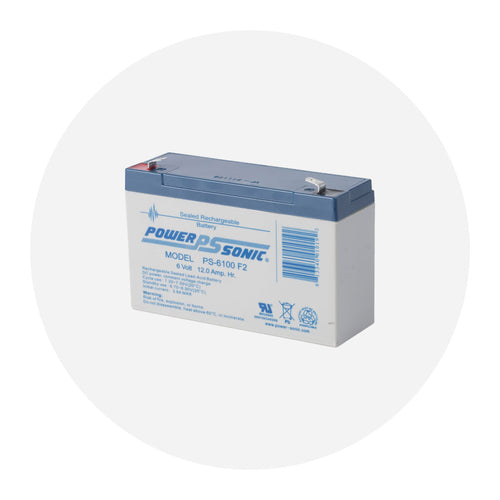
When fully charged, the battery should last for approximately 21 days (without recharging).
TROUBLESHOOTING ACTIONS
Obscured or lack of direct sunlight:
It's possible that your Vantage Connect or Gateway solar panel could be covered with snow, vegetation or dirt so make sure your solar panel is unobstructed to receive maximum sunlight. If your Vantage Connect or Gateway is in an area where the solar panel is not exposed to sunlight for the majority of the day (due to prolonged cloud cover or shadows), you should either move or turn your solar panel so that it receives adequate solar charging.
Cold Weather:
When temperatures are -4 degrees F (-20 degrees C) and below for prolonged periods of time, the battery is unable to recharge itself. Once the weather warms, charging via solar power will resume.
If you routinely experience temperatures below -4 degrees F (-20 degrees C), consider moving your Vantage Connect or Gateway indoors and supplying electrical power directly to the unit (if power is accessible) using Davis' Optional AC Charger Kit. This optional charger kit supplies power to and charges the battery using a specialized adapter, AC plug and power outlet. You can find the charger kit here.
Check for Malfunction:
If none of the above conditions apply, please check your installation to make sure all cables (i.e. solar panel cable, battery cable and primary power cable) are connected properly. Please refer to your Vantage Connect Manual or Gateway Instruction Manual for details on where to find each cable.
If possible, measure your battery's voltage with a volt meter. A well-charged battery will measure above 6 volts.
TECHNICAL SUPPORT
If all cables are connected properly and you do not see any visible problems, please call Davis Technical Support for additional help. When calling, please have your Device ID (DID) and username handy as well as any voltage measurements you have made.
An example of account information:
- Device ID: 001D0AF12C8F
- Station Name: VC 001D0AF12C8F
- Username: benstest
An example of battery specifications:
- Davis Part #7011.025
- 12 amp hour, 6-volt
- Charging temperature down to -4 degrees F (-20 degrees C)
If you need more help, please contact Technical Support at (510) 732-7814 or support@davisinstruments.com Monday through Friday, 7:00 a.m. to 5:30 p.m. Pacific Time.
Sometimes when you are adding or doing maintenance to your Gateway, Node or weather station in the EnviroMonitor app, you may see one of the following messages:
"Cannot determine Gateway Type "
"Cannot determine weather station Type."
This means the phone cannot verify the data in our system. This can be caused by a few things, but the most common is that the password was changed while you were already logged in. Try logging out of the EnviroMonitor app and then log back in.
If this does not solve the problem it may be the phone's cellular data is turned off. While doing these types of operations, we are using the phone network connection to talk to our servicer. Please toggle your phone's cellular data ON.
AirLink
You may have an older version of the app. Please download the latest version from iOS App Store or Google Play Store.
Make sure the sensor is powered up and connected to the internet.
The archive rate is the rate at which archive data is permanently stored on the WeatherLink Cloud. (It does not affect the update rate for current conditions.) The default setting for AirLink’s archive rate is 15 minutes. You can change this to 1 or 5 minutes by purchasing an annual device upgrade subscription for your AirLink. You can select 30- or 60-minute archive rates without upgrading. You can change your archive rate on the WeatherLink app or on WeatherLink.com.
Note: If you are using AirLink with a WeatherLink Live or EnviroMonitor system that has already been upgraded, it will also be upgraded. You do not need to purchase another upgrade.
The BLE may have “gone to sleep.” To reset, insert a paper clip into the reset button access on the front of the sensor housing. If the LED still does not come on, make sure your AirLink is connected to AC power. (Unplugging the device from AC power will also reset it, however this will cause any stored archive data to be lost. Since data is uploaded as soon as it is generated when connected to Wi-Fi, this will only be a problem if the device has not been connected to Wi-Fi for some time.)
To edit your AirLink’s device information (name, indoor or outdoor use, or location), open your WeatherLink.com page and click on the wrench icon under you name on the righthand side of the bulletin. (If your AirLink is part of an existing system, click the ^ next to the system’s name to open it.) Click the name of your AirLink to open the Device Info page. After making your changes, click Save.
You can use AirLink with an existing Davis system that is uploading to the WeatherLink Cloud. Your air quality will appear on your WeatherLink.com bulletin page as well as on your WeatherLink app. (It will not appear on your Vantage Pro2 or Vantage Vue console.)
Check to make sure you entered the correct Wi-Fi password. You may have entered the wrong password: repower the AirLink and try reconfiguring Wi-Fi in the app.
WeatherLink Live
In the WeatherLink app, tap the Account icon at the top of the home screen. Tap Units to change them.
No. Batteries are not required for it to operate. However, it is highly recommended that you install batteries to prevent loss of data if AC power is lost.
When AC power is lost, if the WeatherLink Live has 4 AA backup batteries, it will stop trying to communicate with your network but will continue (on battery power) to receive sensor suite weather data and store it. When AC power has resumed it will get back on the network and send the records it stored during the outage up to your database in the WeatherLink cloud.
Approximately 13 days.
If using a Wi-Fi connection:
- Check to make sure you entered the correct Wi-Fi password.
- Make sure you are connecting the WeatherLink Live to a 2.4 GHz network. It will not connect to a 5 GHz network.
If using an Ethernet connection:
- Reseat the Ethernet cable.
- Plug the Ethernet cable into a different jack on the router.
- Try a different cable.
Yes, but repeaters must be configured on the mobile app only
- In the Weatherlink app tap the Account icon at the top of the home screen.
- Scroll down to your Weatherlink Live's name.
- Tap the > next to it.
- Tap Configure Stations
- Tap "Edit" on your station
- Tap "Advanced Settings"
- Tap "Repeater"
Check the WeatherLink Live’s transmitter IDs and any sensor suite transmitter IDs. They must be the same for the WeatherLink Live to hear the sensor suite data.
Check that the station type configured for that ID is correct.
On top of this, there could be a frequency mismatch going on. When first setting up the Weatherlink Live, and you are selecting the initial location for the device on the map, you MUST select the same country that you purchased your Weather station in (or for). This is because the frequency profiles for the Vantage style weather stations differ, depending on which country it was created for. The Weatherlink Live however, has EVERY frequency needed, already built in, but it can only use one of them at a time. This is dictated by the original location that was set when first installing the device.
- The way to correct this issue is to delete the Weatherlink Live from your account, reinstall it, then pick the correct country that matches where your weather station was built for. Then, once the station is running, you can edit the location pin to wherever in the world you like. Depending on which direction timezone-wise you move the pin, the device may go quiet until the time difference corrects itself. This is because the servers only want a single version of each timestamped datalog. Duplicates are ignored.
The WeatherLink Live can support a separate Wind Transmitter.
If this is the only wind device and you want to have it show as the main wind device, you would need to do the following.
Log into the WeatherLink.com website. Then, click on the Wrench icon
, then click on "Device Configuration"
You should see something similar to:
You then want to select the PRIMARY weather station and hit EDIT.
You need to make sure that you have WIND selected.
This sounds backwards, but if you do not, you will not see the correct options under advanced Setting in the next step
Click on "Advanced Settings".
You will then see a setting similar to
You want to change this to be as the following
Then hit BACK and then save when prompted to.
No it will not. When configuring your network settings using the WeatherLink App there is no provision for configuring it to use a proxy server.
WeatherLink Live ports
The WLL uses the following ports:
The WLL DOES NOT require any inbound ports to be whitelisted in the firewall. To connect to Davis servers, it only needs the ability to make outbound connections on port 5621 and to make DNS queries on port 53.
Existing WeatherLink USB/Serial data logger users can easily upgrade to a WeatherLink Live and import your historical sensor data from your WeatherLink Computer Software to the WeatherLink Cloud. Doing so will combine your historical sensor data with the new data from the WeatherLink Live.
The process is simple:
- Purchase the WeatherLink Live and use the WeatherLink app to install all of the sensors currently connected to the USB or Serial dta logger. Watch WeatherLink Live: From Box to Setup video here:
- Log into WeatherLink.com
- With the side-bar menu open, click the wrench icon.
- Select your WeatherLink Live device if not already selected
- Under "device", click the "Import" tab.
- Confirm your WeatherLink Live Settings and click "Start Import"
- Follow steps 1-4 (see example of steps in the pictures below). Be sure to follow the directions closely to ensure an accurate import of data.
Once the import is complete, you will receive confirmation that your data has been successfully imported via email.
Please note: WeatherLink Live is not compatible with WeatherLink Computer Software. If you would like to continue using the WeatherLink Computer Software, you can keep your current data logger system installed and additionally use WeatherLink Live.
Check that your phone's Bluetooth is on.
- Enter setup or settings on your phone and verify that Bluetooth is turned on and/or that it is not in airplane mode.
Check that the WeatherLink Live's Bluetooth radio is on.
- It may have "gone to sleep". You can "wake it up" by touching the cpacitive touch pad (the indentation centered on the top of the device). You will know the Bluetooth radio is on when you see a flashing blue LED light.
When trying to register your WeatherLink Live, you might have to enable bluetooth for the WeatherLink app before it will connect to your device.
- Tap the Settings icon
- Tap Privacy
- Tap Bluetooth
- Turn on WeatherLink/EnviroMonitor
No. The WeatherLink Live does not support a cabled sensor suite. However, our Vantage Pro2 (w/ USB datalogger), Vantage Connect and EnviroMonitor products do support cabled sensor suites and will push data to the WeatherLink cloud.
Normally the WeatherLink Live will update current conditions every 1 minute. The WeatherLink Live will go into “Live mode” if the device (phone or tablet) using the WeatherLink app is on the same LAN (local area network) and subnet as the WeatherLink Live device. When it is in Live mode you will see “Last updated: LIVE” at the top of your screen and the wind speed data will update every 2.5 seconds and the rain and rain rate will update every 10 seconds.
When your tablet or phone using the WeatherLink app is on the same LAN (local area network) as your WeatherLink Live you’ll see “Last updated: LIVE” at the top of your screen indicating that data is being updated rapidly.
You will need to update your app from the iOS App Store or from Google Play. Previous versions of the app did not support WeatherLink Live.
The archive rate is the frequency at which data records are stored in your weather database on the WeatherLink cloud. It does not affect the update frequency of current conditions and the live data display.
To change your archive rate:
- In the WeatherLink app tap the Account icon at the top of the home screen.
- Scroll down to your WeatherLink Live's name.
- Tap the > next to it.
- Tap Configure Stations.
- Tap Edit next to your WeatherLink Live's name.
- Tap Archive Rate, and choose the rate your prefer 1, 5, 15, 30, 60 or 120 minutes.
To change your archive rate to 1 or 5 minutes you will need to purchase an upgrade by following the steps below:
- Log into your account on WeatherLink.com
- On the right-hand side of your account page, under your name, click "Purchase Upgrade" and follow the prompts to purchase a Pro (for 5-minute archive intervals) or Pro+ (for 1-minute archive intervals) device upgrade subscription.
- With your WeatherLink Live selected as the "current station," click Device Tier at the top center of the page and apply the Pro device upgrade to your WeatherLink Live.
- Click the Tools icon, then choose Device Configuration.
- In the top box on the next screen, click Edit Settings. Choose 1 or 5 minutes in the Archive Rate menu.
- Click save.
If your station is not showing up on the map at weatherlink.com, there are a few things to check.
- Make sure your station is set to "Public" rather than "Private".
- Make sure your station type is set to "Vantage Pro2/Vantage Vue" rather than "Sensor Transmitter".
- Click the wrench icon then "Edit Location" and make sure your location is set correctly.
- Make sure the weather station is reporting temperature.
The WeatherLink Live can accept data from 8 stations (including Integrated Sensor Suites), but only one can be the Primary Station.
The data from the Primary Station is used for calculated values like wind chill, dew point, etc.
For Weatherlink Live, when there is no wind speed value, the device does not update the wind direction. In the Weatherlink.com bulletin page, you would see the wind direction indicator disappear entirely. When this occurs, you can always check to see what the last indicated direction was, but technically without any wind at all, there is no direction.
WeatherLink Apps
The new WeatherLink Mobile App 2.0 are available to you for FREE.
Download iOS version at Apple Store and Android version in Google Play.
When saying “Alexa, ask WeatherLink for the current conditions”, if your Echo device gives you general nearby weather and not your weather stations actual data, it may be that Alexa did not recognize the key words it needs to hear. It must hear the words "ask WeatherLink" and "current conditions". If your station name has special characters (e.g. Tom & Marys Weather) your Echo may not retrieve the data properly. Try changing your station name, on weatherlink.com, and remove any special characters.
WeatherLink.com
You can view your data online:
- A. in your web brwoser at WeatherLink.com
- B. on your smartphone in WeatherLink Mobile App
To view your data online, you first need to send the data to the Davis Cloud with the use of a Data Logger (WeatherLink IP plugged into your router or Standard USB or Serial Data Logger plugged into your computer) or EnviroMonitor Gateway cellular-based solution. You can create your WeatherLink Account here.
If your station is in a remote area with a with a good cellular connection, you can use EnviroMonitor Gateway. Learn more here
Simply visit https://www.weatherlink.com, type your email into the field, click 'Sign Up' button and follow the instructions.
Yes. WeatherLink.com is a website accessible via any major web browser (Chrome, Safari, Firefox, also IE and Edge).
Yes. You can create your WeatherLink.com Account without even owning a Davis weather station and start browsing weather conditions (under the 'Map' tab) from all the WeatherLink members publicly sharing their data.
No. Once you create a username it cannot be changed.
Yes. One WeatherLink account can have several devices registered.
Note: Each device can be registered only under one account.
As many as you want. You can register unlimited amount of devices and have access to their current conditions (Bulletin).
With the Pro Tier plan, you are able to access and use advanced features for 3 of your devices.
Note: Vantage Connect and EnviroMonitor owners are automatically on Pro Tier plan.
To reset your password, click on the password link in ’Forgot username or password?’ section located on the sign-in page. After entering your email and clicking ‘next’, we will send you a link to reset your password to the email address you provided.
If you want to retrieve your username, click on the username link in the ’Forgot username or password?’ section located on the sign-in page. After entering your email and clicking next, we will send your username to the email address you provided.
If you received a password reset email for WeatherLink.com and did not request a password reset, please disregard the email. You do not need to inform Davis Instruments Technical Support that you did not request a password reset. If you disregard the email, your password will not be changed and your WeatherLink.com account will not be affected.
Features available to you on WeatherLink.com are: Bulletin, Chart, Data, Map and Mobile
A. Bulletin
- New Features: Wind Rose, Local Forecast, Sunrise/Sunset, Moon Phase
- Key Features: Temperature, Humidity, Barometer, Wind Speed, Wind Direction, Current Rain, Total Rain, Solar Radiation, Ultra Violet Levels
- Ability to customize the bulletin: Display only the sensors you want, change the size and location of the sensor displays
B. Chart (Paid Pro Tier)
- Access and visualize your hisstorical data
- Customize your Y Axis
- Customize your display: color of sensor's graph line, switch between line and bar visualization
- Visualize several sensor readings in one graph
- Access and chart data of station shared with you
C. Data (Paid Pro Tier)
- Access and view your historical data in a table format
- Customize your view of sensors, browse only the data you want
- Export your data
- Access and view data of stations shared with you
D. Map
- Track public stations from all around the world (over 26,000members)
- View live data (current conditions) from any public station
- Access the Bulletin of any public station for even more data
E. Mobilize (Paid Pro Tier)
- Track all the views you've created in your Mobilize App and access advanced agriculture-focused reports for Frost, Weather, Crop and Irrigation
Yes. Bulletin and Map features are available to you for FREE.
To access Chart, Data and Mobilize features, upgrade your account to Pro Tier for only $3.95/mo by clicking ‘UPGRADE PLAN’ button in the User Account dropdown menu.
If you are an existing or a new Vantage Connect or EnviroMonitor user, you will get the Pro Tier access as a part of your regular monthly service fee.
If you are an existing WeatherLink.com user with an active WeatherLink Network Annual Subscription (WeatherLink.com 1.0 “blue page” subscription), you will be prorated for the remaining duration of your subscription with an upgraded Pro Tier full of advanced features (Data, Chart, Mobilize).
Bulletin and Map features are available to you for FREE. You can access advanced features (Chart, Data, Mobilize) by upgrading your account to Pro Tier plan for only $3.95/mo. Simply upgrade your tier by clicking on the 'UPGRADE PLAN' button in your user account dropdown menu.
Once you have purchased a Pro (or Pro+) upgrade for your account you can apply it to a specific station.
- Select the station from the station dropdown in the top right.
- Once the station is selected, click on the gear icon in the top center near the word Basic. Here you can set this station to the Pro (or Pro+) tier.
Both platforms allow you to view basic weather information but both also have very unique features.
WeatherLink.com
Features available to you on WeatherLink.com are: Bulletin, Chart, Data, Map and Mobile
A. Bulletin
- New Features: Wind Rose, Local Forecast, Sunrise/Sunset, Moon Phase
- Key Features: Temperature, Humidity, Barometer, Wind Speed, Wind Direction, Current Rain, Total Rain, Solar Radiation, Ultra Violet Levels
- Ability to customize the bulletin: Display only the sensors you want, change the size and location of the sensor displays
B. Chart
- Access and visualize your historical data
- Customize your Y Axis
- Customize your display: color of sensor's graph line, switch between line and bar visualization
- Visualize several sensor readings in one graph
- Access and chart data of stations shared with you
C. Data
- Access and view your historical data in a table format
- Customize youor view of sensoors, browse only the data you want
- Export your data
- Access and view data of stations shared with you
D. Map
- Track public stations from all around the world (over 26,000 members)
- View live data (current conditions) from any public station
- Access the Bulletin of any public station for even more data
E. Mobilize
- Track all the views you've created in yur Mobilize App and access advanced agriculture-focused reports for Frost, Weather, Crop and Irrigation
WeatherLink Mobile App
Features available to you on the WeatherLink Mobile App include:
- Station List: View current rain, temperature and humidity, wind and conditions for all of your stations and the public stations that you follow
- Station Details Screen: Dive deep into your station data, including hourly and 7-day forecasting, temperature and humidity, rain, wind, barometric pressure, UV index and solar radiation
- Charts for forecast, rain, barometer, UV index and solar radiation
- Solar Energy Calculator: estimates the solar energy produced with a 250 W solar panel and how many 60 W light bulbs it could run
Yes. WeatherLink.com 2.0 and the WeatherLink Mobile App 2.0 are designed to work together.
WeatherLink IP and USB-or-Serial Data Logger: You can set your reading interval to 1 min, 5 min, 10 min, 15 min, 30 min, 1 hour, or 2 hours. This data is uploaded to our server every hour (Example: WeatherLink IP with 15-min interval will send up data every hour with 4 sets of readings. While a 30-min interval will be sent every hour with 2 sets of readings.) You can set the interval in your WeatherLink PC Software.
Vantage Connect and EnviroMonitor: Your data upload interval depends on your subscription plan -- 5 min, 15 min, or 60 min.
Once you have installed your data collection device and downloaded the WeatherLink Computer Software, you'll need to set up uploads. Here's how to do it:
- On your WeatherLink.com page, click the green Add Devices button at the top of the page. (Choose Data Logger for WeatherLink USB or WeatherLink Serial.)
- Click Install and follow the prompts to set up your device. When done, your station’s Device ID and Key will be displayed. Make a note of these.
- In the WeatherLink Computer Software, open WeatherLink Network from the Setup Menu. Enter the Device ID and Key.
- If you have a Serial or USB data logger, don’t forget to leave your computer on with the software running 24/7 for continuous uploads.
- Be sure to get the WeatherLink mobile app so you can see your data wherever you are. Search the iOS and Android stores for Davis WeatherLink.
Yes. You can make your weather station data private and hidden from the map of WeatherLink Network (publicly-shared) weather stations by choosing the 'Private' flag in the device settings section of your WeatherLink.com Account (wrench icon). Please, allow up to one hour for the system to recognize the change.
1. WeatherLink Live (#6100)
WeatherLink Live receives data from your Vantage Pro2 or Vantage Vue sensor suites, or from sensor transmitters. It then automatically uploads the data via Wi-Fi to the cloud. You can have up to 8 different transmitting stations, all sending data to one WeatherLink Live. The transmitting stations can be any combination of sensor suites or sensor transmitters.
It's simple to set up using the Bluetooth function on your telephone. Within minutes, you can view your current conditions live on your free WeatherLink.com dashboard as well as on the WeatherLink mobile app.
On top of that, you can upgrade to Pro for only $3.95/month, and get access to and storage of your historical (archive) data. You can visualize, graph, and compare all your sensor data as well export the data in .csv format.
2. WeatherLink USB Data Logger (#6510USB)
If you don’t have access to Wi-Fi router, hub, or extender, we recommend using the WeatherLink USB Data Logger and free WeatherLink Computer Software (Mac version), which can be downloaded from WeatherLink.com.
To view your live data on WeatherLink.com and to store your data in the WeatherLink Cloud, you'll need to keep your computer and your WeatherLink Computer Software running 24/7.
It should be as simple as connecting on TCP port 22222 and sending serial commands. You do need to ensure you use a raw TCP connection with no higher level protocol. It will momentarily refuse the connection if it is actively uploading to WeatherLink.com that moment, but if you retry in a few seconds it should work. Please note that in order to allow the IP logger to send to WeatherLink.com, you must release the TCP socket for about 5 seconds once per minute for the current conditions (loop packet) to be sent and about 60 seconds once per hour for the archive records to be sent up.
Setting the IP address of the Weatherlink IP data logger to "Static" means it's limited to one specific address. When changes are made to the network, sometimes the IP data logger won't connect because it's stuck on the old "Static" IP that no longer exists. To get around this there are some instructions on spoofing the IP to an address you want it to be.
Lets try FORCING it to another IP.
NOTE:192.168.xxx.xxx= the IP address you want001D0A002325= the Device ID (DID)
Click Start, click All Programs, and then click Accessories.Right-click Command prompt, and then click Run as administrator.If the User Account Control dialog box appears, confirm that the action it displays is what you want, and then click Continue.
arp -s 192.168.xxx.xxx 00-1D-0A-00-23-25(That is arp{space}-s{space}192.168.xxx.xxx{space}00-1D-0A-00-23-25)Do you see any messages? You should not typically.
ThenPing 192.168.xxx.xxxYou should see 1 fail, and 3 successful pings ThenPing 192.168.xxx.xxxYou should see 4 successful pings.
This will confirm that the IP took
Video Instructions
Check out our YouTube video that steps you through the process of updating your firmware.
Written Instructions
- Download the firmware from our Firmware Support Page.
- Launch the WeatherLinkIP_Firmware_vXXX.exe file.
- The Firmware Updater dialogue window will appear.
- Select Local Device ID (DID) and click the Find button. This will populate the Local Device ID field with your DID #. If you know the IP address for your data logger, you can enter it into the remote IP address field instead.
- Once your device is found, click the Start button. A Firmware Information Dialogue box will appear advising you of your current Firmware version. Click OK to proceed or Cancel to stop the update.
- Once you click START, the progress bar will begin to show the update progressing. Once complete another dialogue box will appear advising Firmware Update Succesful! Simply click OK and you're all Done.
**This firmware installer will only work on the latest Mac OS (Catalina)**
The mac version of the Weatherlink IP firmware can be downloaded HERE
**This firmware installer will only work on the latest Mac OS (Catalina)**
The Mac version of the WeatherLink IP firmware can be downloaded HERE
Extract the contents of the zip file (WLIPupdater115.zip) then double click on "WLIPupdate115.dmg"
Double click on "UpdateWLIP"
It will run a scrip then ask for your password
As you type your mac password, it will now shows any * or characters, just continue to type your password then hit enter.
Your Data Logger stores up to 2560 archive records (one 52-byte record per archive interval) for later transfer to your computer. The time period that is sotred on your Data Logger depends on what archive interval you have set.
| Arhive Interval | Storage Capacity |
|---|---|
| 1 Minute | 42 hours |
| 5 Minute | 8 days |
| 10 Minute | 17 days |
| 15 Minute | 26 days |
| 30 Minute | 53 days |
| 60 Minute | 106 days |
| 120 Minute | 213 days |
There are various reasons to reinitialize your data logger. If you need to do so, here's how:
- Remove the batteries and power cable from your console or Envoy.
- Remove the data logger.
- Wait 10 seconds.
- Replace the data logger.
- Replace the power cable.
- Replace the batteries.
Jan 1, 2020 we discovered a bug in the WeatherLinkIP datalogger that will prevent it from keeping its time properly synched with Davis servers and cause it to stop uploading historical archive records. You may have noticed that when downloading archive records into your PC software or looking at archive records on weatherlink.com that they are not entirely up to date. This firmware patch will fix that and ensure your weather station clock stays accurate and in synch.
Everyone using a WeatherLinkIP datalogger (p/n 6555) with their Davis weather station will need this critical update.
This critical firmware update can be found HERE.
How to update instructions can be found HERE.
Yes. The "Web Download" feature in your WeatherLink Computer Software allows you to download your data from the WeatherLink Cloud to your computer. Simply click on Setup > Communications Port, Select TCP/IP, then "Web Download", type in the Device ID (001D0A******) of your station and your password for weatherlink.com. Then click File > Download in your software.
(This feature will not work with a Weatherlink Live device)
"Web Download" will give you 4x the amount of data your Data Logger (USB, Serial, WL IP) can store.
You can download all your data as long as you do it periodically.
Please check the table below to determine how often you should download your data from the cloud to your computer to keep it all.
1 Minute Archive Interval . . . . . . . . . . . . . . . . . . . . . 7 days
5 Minute Archive Interval . . . . . . . . . . . . . . . . . . . . . 32 days
10 Minute Archive Interval . . . . . . . . . . . . . . . . . . . . 68 days
15 Minute Archive Interval . . . . . . . . . . . . . . . . . . . . 104 days
30 Minute Archive Interval . . . . . . . . . . . . . . . . . . . . 212 days
60 Minute Archive Interval . . . . . . . . . . . . . . . . . . . . 424 days
120 Minute Archive Interval . . . . . . . . . . . . . . . . . . . 852 days
WeatherLink.com
Option 1: Bulletin and Summary
If your weather station is set for public sharing (Device > Device Info > WeatherLink Network > Public), you can share the URL to your current conditions (Bulletin) with your family, friends and neighbors. As long as they are registered with a WeatherLink.com account, they can view your data.
Option 2: Shareable URL
The Station URL gives you the ability to share your station data with anyone without requiring that person to log into WeatherLink.com and create an account.
- Log in to WeatherLink
- Access the Device Info screen by clicking the wrench in the right sidebar, under the username and account picture.
- Select the statin you are interested in in the right sidebar.
- Under the device option, selecct Station URL
- Click Preview to see each of the three size.
- Click Copy Link to copy and share the unique Station URL
To share a more detailed view of your weather station, including the customizable weather bulletin, ask the person to create a WeatherLink.com account and search for your weather station name on the map.
WeatherLink Mobile App
Have your family, friends or neighbors download the app and create a WeatherLink account. You can either share a link to your weather station, or they can search for your station name or location on the map. With a simple click on the 'Add Station' button, your weather station will be added to their list of stations on their home screen.
Sharing your weather station's current conditions publicly as a member of WeatherLink Network is free of charge, as is viewing current conditions from other publicly-shared stations on the map.
You will, however, have to upgrade your account to Pro status in order to Share your historical data or to view someone else's historical data.
A section in your 'Manage Devices' page called 'Uploads' allows you to choose from these 3rd-party weather sites. You just need to select those you want to upload to with the use of the checkbox and type in your credentials.
Note: GLOBE Uploads are only supported on WeatherLInk Data Loggers, not the WeatherLink Live or WeatherLink Console.
Yes, we have many options.
Current Conditions API
We have a current conditions API. Simply register online at WeatherLink.com. by logging in to your account on Weatherlink.com; clicking the human (account information) icon on the right side of your screen then clicking the "generate Token" link in the bottom left. See Figure 1 below
Archive Records API
To download historical/archive records from our cloud serve see page 36 (Web Download) of this document for details on how to download archive records from our cloud service.
Embedded Widget
You can generate a URL that will link to a current conditions widget (3 possible sizes) by selecting the proper weather station in the station drop down in the upper right. Once the station in question is displayed click the wrench icon and, under Device, choose either Station Embed or Station URL to view the widget and get its URL and/or HTML embeddable link. See Figure 2 below.
WeatherLink.com is a cloud-based solution, so you can access it from any internet-connected device. It has all the popular features from the WeatherLink PC Software and more are planned to be developed in the near future. It is our goal to keep on continually expanding and improving WeatherLink.com features.
No. Envoy8X was designed to communicate with a specialized data transfer utility, which is not capable of sending data to the WeatherLink Cloud.
WeatherLink Software
How to Get the Software
WeatherLink Computer Software and updates are available for free download from WeatherLink.com. Here's how to download or update:
- Create your free WeatherLink account on WeatherLink.com.
- Using the username and passwoord you just set up, log in. (You will have the option to upgrade your WeatherLink.com account to Pro or Pro+, but this is noot necessary. Click Get Started under the Basic column.)
- The Davis Instruments WeatherLink Bulletin Dashboard will appear. On the right side of the screen, under youor name, click the account icon (it looks like a person).
- Click Download full version for Windows, Download full version for Mac, or Update.
- New WeatherLink Computer Software users: Once downloaded, set up your software by adding your station (File > New Stationo). Use the Walkthrough Setup feature, or reer to the WeatherLink Getting Started Guide to set up your station in your software.
How to Start Uploading Data to WeatherLink.com
- On your WeatherLink.com page, click the green Add Devices button at the top of the page. Choose Data Logger for WeatherLink USB or WeatherLink Serial.
- Click Install and follow the prompts to set up your device. When done, your station's Device ID and Key will be displayed. Make a note of these.
- In the WeatherLink Computer Software, open WeatherLink Network from the Setup Menu. Enter the Device ID and Key.
- If you have a Serial or USB data logger, don't forget to leave your computer on with the software running 24/7 for continuous uploads.
- Be sure to get the WeatherLink mobile app so you can see your data wherever you are. Search the iOS and Android stores for Davis WeatherLink.
Apple has made major changes to macOS Catalina and onward where WeatherLink Software is no longer supported nor will successfully install on Macs running macOS Catalina and onward.
The JAVA SE 6.0 that powered WeatherLink Software is no longer being allowed to install on macOS Catalina and onward. Currently we do not have any workarounds to install WeatherLink Software on macOS.
Here are the current available options:
- Some Mac users can install Windows on a "virtual machine" on their Mac, then install the Windows version of WeatherLink Software on the Windows virtual machine. However, this solution isn't the easiest, especially for Mac users with an Apple Silicon Mac.
- There are third-party Mac weather station apps discussed on weather station forums. Howevver, Davis Instruments Technical Support cannot provide assistance with these apps or provide any recommendations concerning these app.
- Our recommended solution for Mac users is to move to WeatherLink.com. The WeatherLink.com platform runs on any web browser which is best-suited for Mac users. You can easily publish your weather station data to WeatherLink.com with a WeatherLink Live or WeatherLink Console.
WeatherLink software is not supported on Linux computers.
There are third-party Linux weather station apps discussed on weather station forums, but Davis Instruments Technical Support does not provide support for these apps.
Our WeatherLink.com platform can run on any web browser and is an ideal solution for users with Linux computers.
You can easily feed data into WeatherLink.com using a WeatherLink Live or WeatherLink Console.
If your WeatherLink data logger has stopped uploading archive records, you may need to reset your data logger. Follow the steps below to clear the data logger and archive records should start to upload.
- Open the Weatherlink 6.0.5 software
- Click on "File" then "Download" to download records from the logger
- Click on "Setup" then "Set Archive Interval"
- Leave the interval as is, hit "OK"
- The prompt will let you now it will clear the archive memory
- Click "OK"
If your "Browse Records" window shows dates but no data, the "datalists.dat" and "datasets.dat" files may be corrupt.
- First you need to close the Weatherlink software.
- Delete datalist.dat and datasets.dat from the C:\Weatherlink\(Station name) folder.
- Restart Weatherlink and your data should be restored.
If you click on the rain database button in the Weatherlink software, and the rain database does not populate, do not worry. Simply click the "rain" dropdown menu, then select "new" and it should pull all relevant data from your historic log files and populate a new rain database.
Jan 1, 2020 we discovered a bug in the WeatherLinkIP datalogger that will prevent it from keeping its time properly synched with Davis servers and cause it to stop uploading historical archive records. You may have noticed that when downloading archive records into your PC software or looking at archive records on weatherlink.com that they are not entirely up to date. This firmware patch will fix that and ensure your weather station clock stays accurate and in synch.
Everyone using a WeatherLinkIP datalogger (p/n 6555) with their Davis weather station will need this critical update.
This critical firmware update can be found HERE.
How to update instructions can be found HERE.
If you are having issues with the WeatherLink USB data logger on a Windows 11 computer, please download the first driver update here. This will usually resolve the issue with Windows 11 computers not recognizing the WeatherLink USB data logger.
WiFiLogger 2and Meteobridge are third-party devices. These are not developed by Davis Instruments, and Davis Instruments Technical Support does not provide assistance with these. Please reach out to the manufactuer of these devices for assistance.
Marine
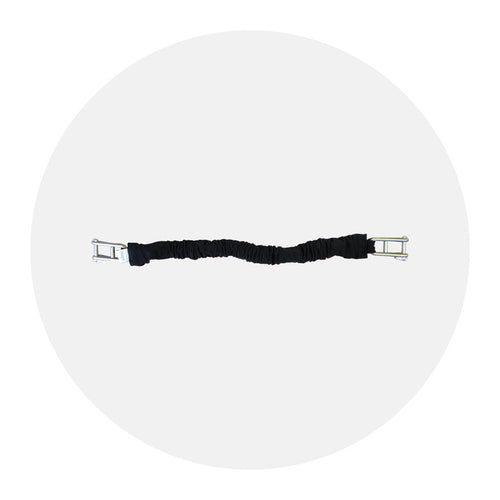
We recommend building the Echomaster around a backstay. This may not always be the best “catch rain” position, but it sure gets it out of the way. If you want to hoist it to the spreader, try a short bungee cord on the lower shroud that gets more tension as you hoist the unit. Another bungee cord on the upper shroud works well in many cases.
Both the deluxe and standard Echomaster meet US Coast Guard requirements for lifeboat and life raft radar reflectors under SOLAS 74/83.
The Queaz-Away Wristbands exert gentle pressure at points on each wrist to minimize or eliminate the miserable effects of travel. They are safe and easy to use. Simply slip on your wrists, position and enjoy your travel.
Boats up to 26 feet need three Rocker Stoppers on each side. Boats 27 to 36 feet require four on each side. Use five Rocker Stoppers for boats 37 to 42 feet and six on each side for boats 43 to 50 feet.
The button should rest three fingers width below your wrist seam and in between the two central flexor tendons.
If you troll much faster than 2 MPH the Fish Seeker will develop “Speed wobbles”, turbulence and eventually flip over and try to come to the surface. The Fish Seeker is designed for a low trolling speed and not for use with deep diving lures.
You do not want anything on the line that wobbles or has a lot of drag. A lot of drag will make the Fish Seeker flip over as if a fish were on the line.
The advantages are better fuel mileage, faster out-of-the-hole times, less bow rise, slower planing speeds, better turning and rough water control.
Yes, the hardware is stainless steel.
As a rule of thumb centered over the propeller is best. On some motors this is not possible. You want both fin halves equally spaced fore and aft on the cavitation plate, SO THAT they are not pitched differently and the trailing edges are parallel with each other.
The affect on top speed is minimal. Most people do not notice a drop off in top end speed. Some customers have noticed a 2% drop.
We have never seen the electrolysis cause a major problem. It might if your outdrive were immersed in salt water all the time, but since most people trailer their boats or lift the outdrive in the slip, the effects are minimal.
Your WindTrak 15 should be balanced from the factory. If you think it is not we recommend you send it back to us for adjustment. If you would like to check it yourself you should do the following: simply hold it sideways (the shaft perpendicular) and the vane should be horizontal to the ground. To adjust the balance, remove the brass clip holding the lead counterweight and slide the counterweight back and forth. Once balanced is achieved, put the clip back in place.
You read degrees at the zero where the arm with the zero lines up with a degree mark. To read minutes, you simply find the two lines, one on the arm and one on the sextant body, that most match each other. There will only be two lines that match exactly or closest to each other and these are the minutes.
Discontinued Products
There were updates made to the hardware in consoles dated July 2012 and later. If you are using a new console or a recently repaired console with an older data logger, you will get an error "incompatible logger".
It is not our intention to make you buy new data loggers. If you experience trouble with a new console and your old Davis data logger, please contact Technical Support. They will upgrade your old Davis data logger to a new Davis data logger for our standard repair fee.
Reach Tech Support at support@davisinstruments.com or (510) 732-7814.
Vantage Connect is a cellular communication box that works with our weather stations to send weather data to weatherlink.com. Once the data is online, you can use your personal cell phone, tablet or PC to access it anywhere you have and Internet connection.
Vantage Connect is a standalone telematics device that listens to a variety of weather station sensors. Vantage Connect listens to a Davis weather station integrated sensor suite, storing and transmitting the data to the Cloud using a cellular connection.
Try these steps with your Vantage Connect:
- Make sure status LED is showing normal function, otherwise the device has not registered on the network.
- Check power to the weather station. Make sure all cables are securely plugged in.
- Measure battery power with volt meter (should measure at 6 volts and above). If the battery power is less than 6 volts, please make note of the voltage and contact Technical Support.
- Repower by unplugging the main power cable, waiting one minute, then plugging it in again.
If data still is not uploading, contact Technical Support.
Our server will monitor your battery voltage and will trigger an e-mail warning if it should get critically low (approximately 14 days of power). The e-mail will go to both the registered user's e-mail address as well as the alarm e-mail address (if one has been set up).
Yes you can. You will need a Universal Shelter (product #6618) in which to mount the extra battery and cables. Contact Technical Support for parts and instructions on adding an additional battery.
Yes. Your Vantage Connect comes with a battery designed to charge in temperatures as low as -4°F/-20°C. If your installation is in a location with low temperatures, you should replace the battery with a Davis battery, product #7011.025.
Please contact Technical Support to get a replacement battery. If your installation is in a warmer climate, you may replace the battery with a 6-volt, 12 Ah, gel cell battery which will only charge at temperatures above 0°C. For more information, see Battery Specifications in the instruction manual. (With either battery, your Vantage Connect can function down to -40°F/C.)
Yes. You can add an Extra Solar Panel Kit (product #6616). This kit will add a second solar panel to your charging circuit and as a result charge your battery faster in low light environments.
If you unplug the primary power plug from the modem board it will power down BUT the battery will still be connected to the battery charger board. This board will slowly drain the battery over time. For long term storage, greater than two weeks, you should also unplug the red cable from a battery terminal.
Make sure the power cord is connected. If power is connected and the LED is still off, press and release the blue Status LED ON/OFF button. It can take up to 30 seconds for the lights to turn on. If the LEDs are still off, try repowering your Vantage Connect (unplug the main power cable, wait one minute, then plug it in again). If the LEDs still do not come on, contact technical support.
Information on how far you can extend your sensor, cabled console or Vantage Connect with the use of Standard 4-Conductor Cables. Can also be used with origianl Vantage Pro, Weather Wizard and Weather Monitor.
Our standard 4-Conductor Extension Cables include a coupler kit (protective shell; bacle coupler; and five waterproof, silicone-filled, crimp style splice connectors) for joining two cables together, indoors or out. Use the chart below to determine maximum cable lengths.
| Product | Cable Use | Included Cable Length | Maximum Cable Length |
|---|---|---|---|
| Wireless Vantage Pro2 | Anemometer to Integrated Sensor Suite | 40 ft (12 m) | 240 ft (73m) |
| Cabled Vantage Pro2 | Anemometer to Integrated Sensor Suite | 40 ft (12m) | 240 ft (73 m)* |
| Cabled Vantage Pro2 | Console to Integrated Sensor Suite | 100 ft (30m) | 1000 ft (300 m) |
| Cabled Vantage Pro2 ISS with Cabled Vantage Connect | Vantage Coonnect to Integrated Sensor Suite | 100 ft (30m) | 1000 ft (300 m) |
| WeatherLink for Vantage Pro2 and Vantage Vue (serial port versions)** | Data Logger to Serial Port | 8 ft (2,4 m) | 48 ft (14,6 m) |
| Solar Radiation Sensor (6490) | Sensor to Integrated Sensor Suite | 2 ft (0,6 m) | 125 ft (38 m) |
| UV Sensor (6490) | Sensor to Integrated Sensor Suite | 2 ft (0,6 m) | 125 ft (38 m) |
| Stainless Steel Temperature Probe with RJ Connector (6475) | Probe to Wirless Temperature Station, Weather Envoy, Envoy8X, or Anemometer/Sensor Transmitter Kit | 25 ft (7,6 m) | 200 ft (61 m) |
| Temperature Probe with RJ Connector (6477) | Probe to Wirless Temperature Station, Weather Envoy, Envoy8X, or Anemometer/Sensor Transmitter Kit | 25 ft (7,6 m) | 200 ft (61 m) |
| Leaf Wetness Sensor (6420) | Sensor to Wireless Leaf & Soil Moisture/Temperature Station | 40 ft (12 m) | 200 ft (61 m) |
| Anemometer (6410) | Sensor to Integrated Sensor Suite | 40 ft (12 m) | 240 ft (73 m)* |
| Rain Collector (stand alone, 7852) | Collector to Integrated Sensor Suite or Anemometer/Sensor Transmitter Kit | 40 ft (12 m) | 900 ft (270 m) |
| Rain Collector with Mountable Base (7857) | Collector to Integrated Sensor Suite or Anemometer/Sensor Transmitter Kit | 40 ft (12 m) | 900 ft (270 m) |
| Temperature/Humidity Sensor (6830)(6832) | Sensor to Anemometer/Sensor Transmitter Kit | 25 ft (7,6 m) | 25 ft (7,6 m) |
*Anemometer Cables: Maximum dsplayable wind speed decreases as the length of cable increases. At 140 ft (42 m) of cable, the maximum wind speed displayed is 135 mph (60 m/s). At 240 ft (73 m) of cable, the maximum wind speed displayed is 100 mpy (45 m/s).
**WeatherLink USB: Extension cables may be purchased from a computer supplier.
To extend the cables on the Temperature Probe (6470), Soil Moisture Sensor (6440), and Rain Collector Heater (7720), please call us directly at (800) 678-3669
The Cable Buddy and Lube II work on all outboard steering cables. They’ll fit all major U.S. and foreign motors (7/8" x 14 pitch threads) except Mercury motors.
The Tilt tube has a different thread.
Not all motors have a locking nut on the steering rod side of the tilt tube. You don't need a locking nut to install Lube II. However if you want one you can buy a stainless steel or aluminum nut from a hardware store or engine dealer to fit the tilt tube. You would need a nut with the same inside diameter and tread pattern as Lube II, which is 7/8" by 14 pitch.
No, the wind must be directed at the backside of the TurboMeter. This is the side opposite the digital readout.
The lighter plug receptacle polarity is probably reversed. This defeats the photo cell and limits the current powering the bulb. Simply switch the wires entering to the receptacle.
If you hang a Mega-Light from an insulated backstay wire used as a single side band radio antenna, the circuit will be damaged if the light is on during radio transmission. You need to unplug or move the Mega-Light when transmitting on single side band.
Yes Slick Seam will work well in this application. Slick Seam adheres best if the gap is deeper than it is wide. Apply Slick Seam with a plastic putty knife and clean up with mineral spirits for best results.